

Advertisements
How to Free Up Phone Storage in 10 Minutes
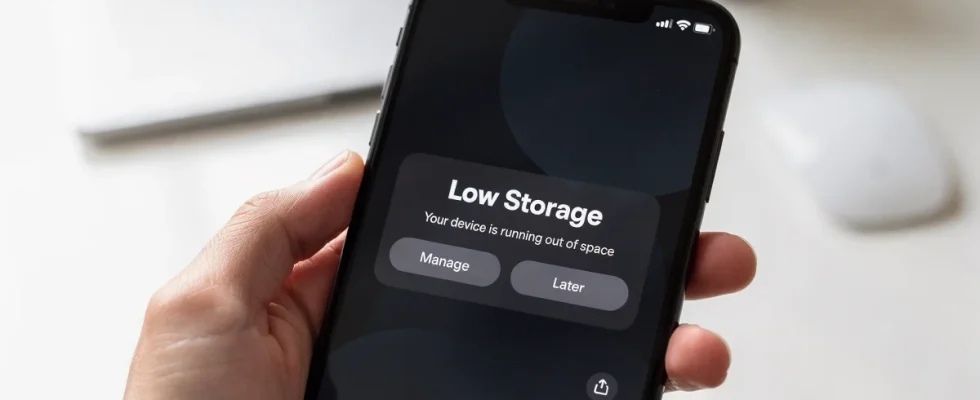
Nothing brings your day to a halt faster than the dreaded “Storage Almost Full” popup right when you are trying to snap a photo or download an important app. If you are constantly juggling files to save a few megabytes, you do not need to spend hours organizing your digital life. Here is the fast track to free up phone storage in just 10 minutes without losing your favorite memories.
Minute 1 to 3: Purge Photo Clutter and Empty the Trash
Photos and videos take up the largest chunk of space on almost every smartphone. Start by clearing out burst shots, duplicate photos, and long 4K videos you no longer need.
- iPhone users: Open the Photos app, scroll down to Utilities, and check Duplicates. Merge them with one tap. Next, open Albums > Recently Deleted and tap Delete All. Until you empty that folder, those photos still occupy your drive.
- Android users: Open Google Photos or your default gallery, tap your profile icon, and select Free up space. This safely removes local copies of backed-up images. Remember to empty your Trash bin inside the app as well.
- Check video length: Sort your media by file size if possible and trim or delete screen recordings, which silently consume gigabytes.
Minute 4 to 6: Clear Messaging Attachments and Hidden Cache
Group chats and text threads accumulate massive amounts of cached media over months of use. Cleaning out old shared memes, voice notes, and videos can reclaim several gigabytes instantly.
| App | Where to Go | What to Clear |
|---|---|---|
| Messages (iOS) | Settings > General > iPhone Storage > Messages | Top Conversations & Large Attachments |
| Settings > Storage and Data > Manage Storage | Files larger than 5 MB & forwarded media | |
| Web Browsers (Safari / Chrome) | App Settings > Privacy > Clear Browsing Data | Cached images, website data, and offline files |
| Android App Cache | Settings > Apps > [Select App] > Storage | Clear Cache (do not select Clear Data) |
Minute 7 to 8: Offload Unused Apps and Heavy Games
Most of us have apps downloaded for a single vacation, concert, or food delivery order that we never opened again. Mobile games with high-definition graphics are especially notorious for eating 3 GB to 10 GB each.
On iOS, go to Settings > General > iPhone Storage and enable Offload Unused Apps. This removes the app installation files while keeping your documents and settings safe. On Android, head to Settings > Storage > Apps, sort by size, and uninstall anything you have not opened in the last 60 days.
Minute 9 to 10: Delete Offline Media Downloads
Streaming services allow you to download content for offline viewing, but these downloads frequently sit forgotten in your phone memory. Check your favorite media apps to clear saved files:
- Spotify & Apple Music: Remove downloaded playlists you rarely listen to offline.
- Netflix, Max & Disney+: Open your profile download tab and delete watched TV episodes and movies.
- Podcasts: Set your podcast app to automatically delete episodes after you finish listening.
Quick Takeaways
- Empty the trash: Deleted photos and files stay on your device for 30 days unless you manually clear your “Recently Deleted” folder.
- Target message threads: Video attachments in text apps like iMessage and WhatsApp consume surprising amounts of hidden storage.
- Manage offline media: Regularly purge forgotten playlist and movie downloads from streaming apps.
Frequently Asked Questions
What is the fastest way to clear space on my phone?
The fastest step is deleting downloaded movies in streaming apps and emptying your photo app’s Recently Deleted album. These two actions alone can instantly recover 5 GB to 15 GB within seconds.
Does clearing app cache delete my personal data or accounts?
No, clearing an app cache only deletes temporary files like cached preview images. Your login credentials, chat histories, and saved settings remain completely safe as long as you tap Clear Cache, not Clear Data.
Why is “System Data” or “Other” taking up so much space?
“System Data” includes system logs, browser caches, and temporary streaming buffers. Restarting your phone or backing it up to a computer often clears out these lingering temporary files automatically.
Taking just a few minutes today to free up phone storage will keep your device running smoothly and prevent unexpected errors when you need your camera most. Want more simple tech shortcuts? Check out our latest guides to smartphone battery health and smart home essentials.