

How to Set Up Two-Factor Authentication on Your Accounts
In today’s digital world, keeping your online accounts secure is more important than ever. Passwords alone, even strong ones, aren’t always enough to deter determined cybercriminals. That’s where two-factor authentication, often called 2FA, comes in. Learning how to set up two-factor authentication adds a crucial second layer of defense, making it significantly harder for unauthorized individuals to access your sensitive information.
Advertisements
Think of it like this: your password is the lock on your front door. 2FA is like adding a deadbolt that requires a second, unique key. Even if someone manages to guess or steal your password, they won’t be able to get in without that second key. This guide will walk you through the process, helping you protect your digital life step by step.
Understanding Two-Factor Authentication (2FA)
Before we dive into the ‘how,’ let’s quickly review the ‘what.’ Two-factor authentication requires two distinct forms of identification before granting access to an account. These factors typically fall into three categories:
- Something you know: This is usually your password or a PIN.
- Something you have: This could be your smartphone (receiving a text message or using an authenticator app), a physical security key, or an email account.
- Something you are: This refers to biometrics, such as a fingerprint or facial scan.
Most commonly, 2FA combines ‘something you know’ (your password) with ‘something you have’ (a code sent to your phone or generated by an app). This combination dramatically reduces the risk of unauthorized access, even if your password is compromised.
Choosing Your 2FA Method
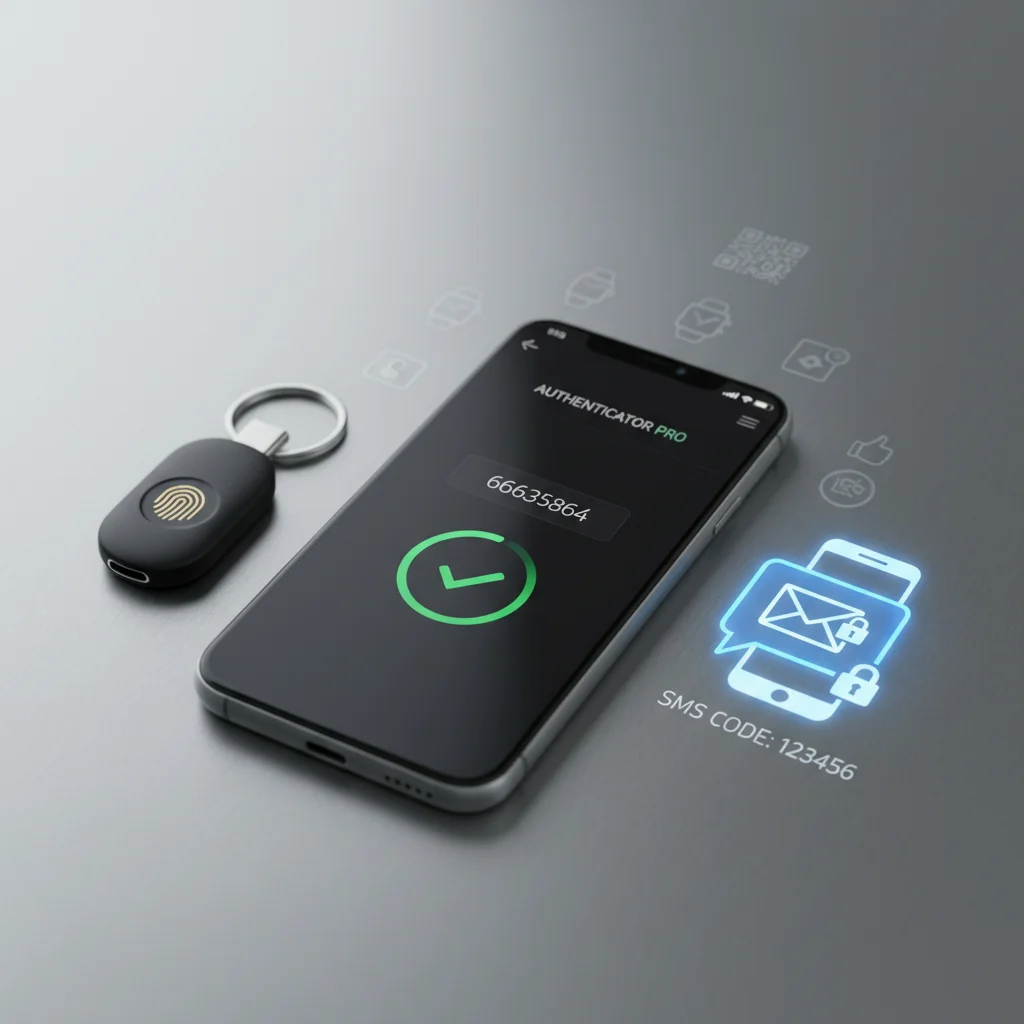
When you go to set up two-factor authentication, you’ll often find several methods available. Each has its own pros and cons in terms of convenience and security:
SMS/Text Message Codes
This is one of the most common and easiest methods. After entering your password, a unique code is sent to your registered phone number via text message. You then enter this code to log in.
- Pros: Very easy to use, almost everyone has a cell phone.
- Cons: Can be vulnerable to SIM-swapping attacks, where criminals trick your carrier into transferring your phone number to their device. Also, if you don’t have cell service, you can’t receive the code.
Authenticator Apps (e.g., Google Authenticator, Authy)
These apps generate time-sensitive codes directly on your smartphone. They don’t rely on cell service, making them more secure than SMS codes.
- Pros: More secure than SMS, works offline, codes refresh frequently.
- Cons: Requires a smartphone, if you lose your phone and don’t have backups, regaining access can be tricky.
Security Keys (e.g., YubiKey)
These are small physical devices that you plug into your computer’s USB port or connect wirelessly. After entering your password, you touch or activate the key to log in.
- Pros: Extremely secure, resistant to phishing and man-in-the-middle attacks.
- Cons: Requires purchasing a physical device, can be inconvenient if you forget or lose it.
Step-by-Step: How to Set Up Two-Factor Authentication
The exact steps to enable 2FA will vary slightly depending on the service, but the general process is quite similar. Here’s a universal guide to help you set up two-factor authentication on most popular platforms:
1. Access Account Security Settings
Log in to the account where you want to enable 2FA. Look for sections like ‘Security,’ ‘Privacy,’ ‘Account Settings,’ or ‘Login & Security.’ These are usually found in a dropdown menu under your profile picture or username.
2. Find the Two-Factor Authentication Option
Within the security settings, you should see an option labeled ‘Two-Factor Authentication,’ ‘2FA,’ ‘Multi-Factor Authentication (MFA),’ or ‘Login Verification.’ Click on this option to begin the setup process.
3. Choose Your Preferred Method
The service will likely offer you a choice of 2FA methods (SMS, authenticator app, security key). Select the one you prefer. For most users, an authenticator app offers a good balance of security and convenience.
4. Follow the On-Screen Prompts
- For SMS: You’ll be asked to confirm or enter your phone number. A verification code will be sent to your phone. Enter this code into the website to confirm.
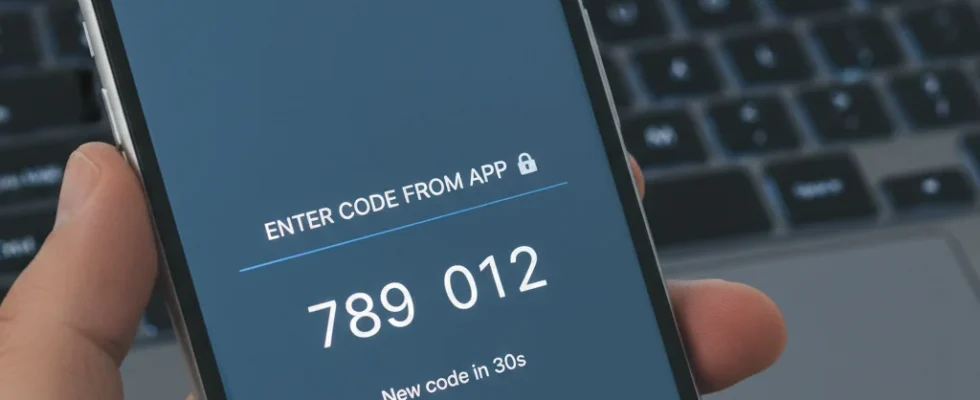
- For Authenticator App: The service will display a QR code. Open your authenticator app (e.g., Google Authenticator, Authy), choose to add a new account, and scan the QR code. The app will then generate a 6-digit code. Enter this code into the website to link the app.
- For Security Key: You’ll be prompted to insert your key and touch it when indicated.
5. Save Backup Codes
This is a critical step! Most services will provide a list of one-time-use backup codes. These codes are your lifeline if you lose your phone, your authenticator app stops working, or your security key is misplaced. Download them, print them out, and store them in a safe, offline location (like a locked drawer, not on your computer). Do not skip this step!
6. Review and Confirm
Once you’ve completed these steps, 2FA should be active. The service will usually provide a confirmation message. You might be asked to log out and log back in to test it.
Accounts Where You Should Enable 2FA Immediately
While you should aim to enable 2FA on as many accounts as possible, prioritize these:
- Email Accounts: Your email is often the ‘master key’ to many other accounts.
- Banking and Financial Accounts: Protect your money and investments.
- Social Media: Prevent identity theft and unauthorized posting.
- Cloud Storage: Keep your personal files and documents safe.
- Shopping Accounts: Especially those with saved payment information.
Quick Takeaways / Key Points
- 2FA adds a vital second layer of security beyond just a password.
- Prioritize enabling 2FA on high-value accounts like email and banking.
- Always save your backup codes in a secure, offline location.
FAQ
Is 2FA foolproof?
While 2FA significantly enhances security, no system is entirely foolproof. Some methods, like SMS 2FA, can be vulnerable to sophisticated attacks like SIM swapping. Authenticator apps and security keys generally offer stronger protection.
What if I lose my phone with my authenticator app?
This is why backup codes are so important! If you’ve saved them, you can use a backup code to regain access to your account. Otherwise, you’ll need to go through the account recovery process for each service, which can be time-consuming.
Does 2FA make logging in take longer?
Yes, it adds a small extra step, but it’s usually just a few seconds. The slight inconvenience is a small price to pay for the significantly increased security it provides. Many services also allow you to ‘trust’ a device for a certain period, reducing how often you need to enter a code.
Conclusion
Taking the time to set up two-factor authentication on your online accounts is one of the most effective steps you can take to safeguard your digital life. It’s a simple yet powerful security measure that adds a robust layer of protection against unauthorized access and cyber threats. Don’t wait until it’s too late; make 2FA a priority for all your important online services today. Your peace of mind is worth it!