

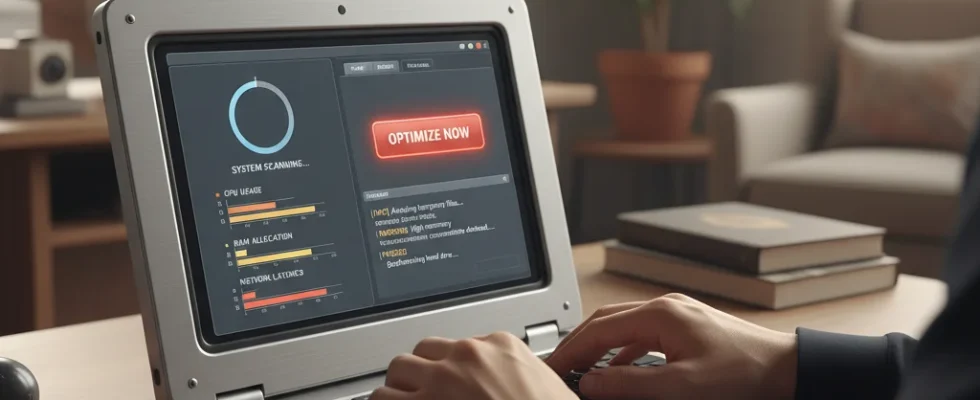
How to Speed Up an Old Laptop Without Buying a New One
Advertisements
Is your trusty old laptop starting to feel more like a rusty old snail? You’re not alone. Many of us hold onto our devices for years, only to find them slowing down to a crawl. Before you start browsing for expensive new models, there’s good news: you can often significantly speed up old laptop performance with a few smart tweaks and upgrades. You might be surprised at how much life you can squeeze out of your current machine.
This guide will walk you through practical, budget-friendly steps to revitalize your aging laptop. From simple software cleanups to more involved hardware boosts, you’ll learn exactly what you need to do to get your computer running smoothly again. Let’s dive in and transform that sluggish machine!
Clean Up Your Digital Clutter
One of the easiest and most effective ways to instantly boost your laptop’s speed is to declutter its digital workspace. Think of it like cleaning out a messy room – things just run better when they’re organized. Over time, your hard drive accumulates temporary files, unused programs, and large media files that can hog resources and slow everything down.
Start by uninstalling programs you no longer use. Go to your Control Panel (Windows) or Applications folder (macOS) and remove any software that’s just taking up space. Next, tackle your downloads folder and desktop. Many people leave countless files there, which can slow down startup and general performance. Move important documents to organized folders and delete anything you don’t need.
Don’t forget to clear out temporary files and your browser cache. Windows users can use the Disk Cleanup utility, while Mac users can manually clear browser data or use third-party tools. Regular maintenance here can make a big difference in how quickly your applications load and how smoothly your system operates.
Optimize Your Software Settings
Beyond just cleaning up, adjusting your software settings can dramatically improve how your old laptop performs. Many programs, especially those that start automatically, can consume valuable system resources without you even realizing it. You have the power to rein them in.
First, check your startup programs. On Windows, open Task Manager (Ctrl+Shift+Esc) and go to the ‘Startup’ tab. On macOS, go to System Settings > General > Login Items. Disable any unnecessary programs from launching when your computer starts. This can drastically cut down on boot times and free up RAM for other tasks.
Next, consider your visual effects. Modern operating systems often use fancy animations and transparency effects that can strain older hardware. On Windows, search for “Adjust the appearance and performance of Windows” and choose ‘Adjust for best performance.’ Mac users can reduce transparency and motion in Accessibility settings. These small changes can make your system feel much snappier.
Finally, keep your operating system and drivers updated. While it might seem counterintuitive to install more software on an old machine, updates often include performance improvements and bug fixes that can actually help your laptop run more efficiently and securely. Make sure your graphics, network, and chipset drivers are current.
Consider a Hardware Upgrade
If software tweaks aren’t enough, it might be time to think about a hardware upgrade. Don’t worry, you don’t need to be a tech wizard, and these upgrades are often more affordable than a new laptop. Two main components offer the biggest bang for your buck: the Solid State Drive (SSD) and Random Access Memory (RAM).
Upgrade to an SSD
This is arguably the single most impactful upgrade you can make to speed up old laptop performance. If your laptop still uses a traditional Hard Disk Drive (HDD), switching to an SSD will make it feel like a brand-new machine. SSDs have no moving parts, making them much faster for booting up, loading programs, and accessing files. You can find 250GB or 500GB SSDs for around $30-$60 on Amazon or Best Buy, and there are many online tutorials for swapping them out yourself.
Increase Your RAM
More RAM allows your computer to handle more tasks simultaneously without slowing down. If you’re often multitasking, browsing with many tabs open, or using memory-intensive applications, upgrading your RAM can make a noticeable difference. Most older laptops come with 4GB of RAM; upgrading to 8GB or even 16GB (if supported) can significantly improve responsiveness. A 8GB RAM stick might cost you around $25-$40, depending on the type needed for your laptop.
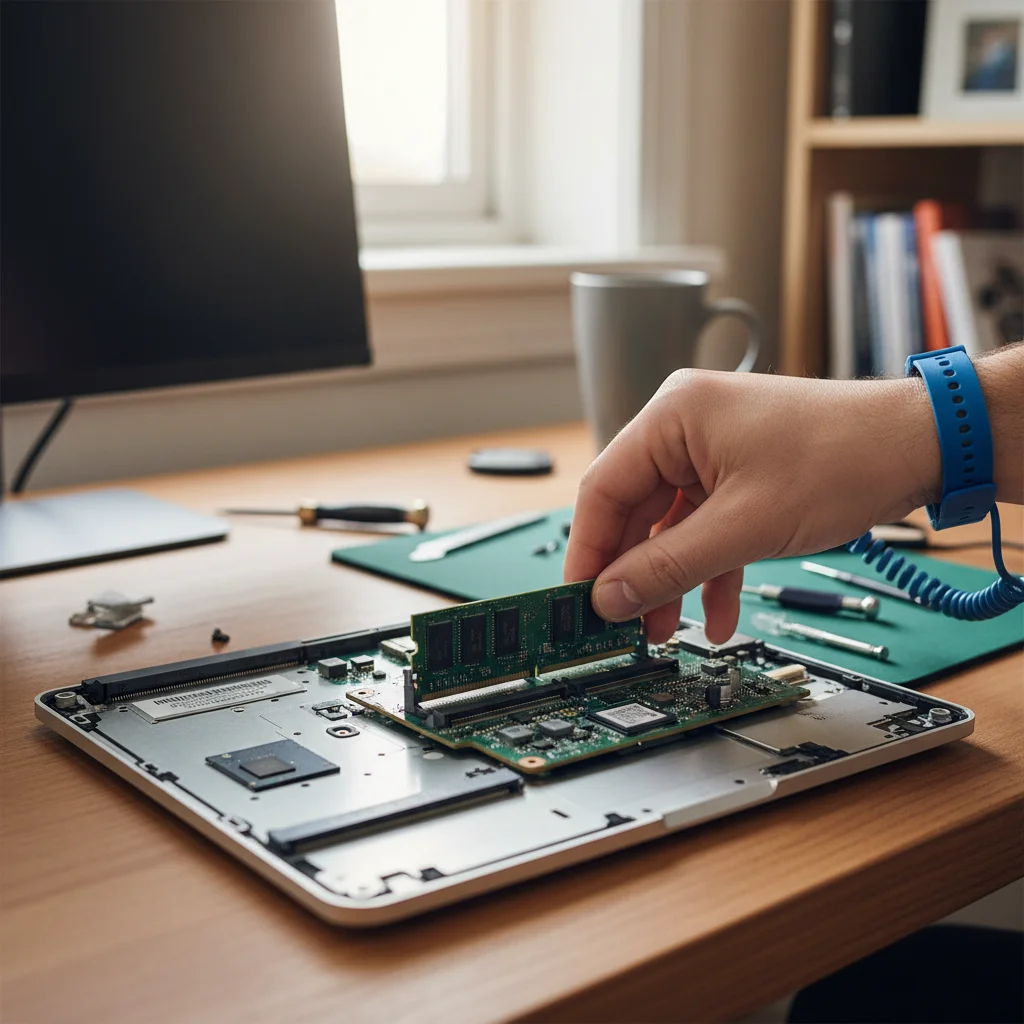
Before buying, check your laptop’s current RAM and storage type, and its maximum supported RAM. Websites like Crucial.com offer tools that can scan your system and tell you exactly what upgrades are compatible.
Maintain a Healthy Operating System
Ongoing maintenance is crucial for keeping your laptop running smoothly long-term. Just like a car needs regular oil changes, your computer benefits from consistent care. A healthy operating system means better performance and fewer headaches.
Regularly scan for malware and viruses. Even if you’re careful, threats can slip through. Use a reputable antivirus program (many free options are available) and run full scans periodically. Malware can secretly use up system resources, causing slowdowns and instability.
Consider a fresh installation of your operating system. This is a more drastic step, but if your laptop is severely bogged down and nothing else has worked, a clean install of Windows or macOS can wipe away years of accumulated junk and software conflicts. Back up all your important files first! This essentially gives your laptop a fresh start, often making it feel as fast as it was when you first bought it.
Finally, monitor your laptop’s temperature. Overheating can lead to throttling, where your CPU intentionally slows down to prevent damage. Ensure your laptop’s vents are clear of dust and consider a cooling pad if you notice it getting excessively hot, especially during intensive tasks. Keeping it cool helps maintain optimal performance.
Quick Takeaways
- Declutter Your Digital Space: Uninstall unused apps, clear temporary files, and organize your desktop for immediate speed gains.
- Optimize Software Settings: Disable unnecessary startup programs and reduce visual effects to free up system resources.
- Hardware Upgrades are Key: An SSD and more RAM are the most impactful, cost-effective ways to significantly boost an old laptop’s speed.
FAQ
- How often should I clean my laptop’s software?
- Aim for a monthly software cleanup, including clearing temporary files and checking for unused programs. A quick review of startup programs every few months is also a good idea.
- Is it worth upgrading an old laptop’s RAM?
- Absolutely! If your laptop has 4GB or less RAM and you use it for multitasking or browsing with many tabs, upgrading to 8GB or 16GB can provide a very noticeable performance improvement for a relatively low cost.
- Will an SSD really make a big difference?
- Yes, upgrading from a traditional HDD to an SSD is often the single most significant performance boost you can give an old laptop. It dramatically speeds up boot times, application loading, and file transfers, making the whole system feel much snappier.
Conclusion
Don’t give up on your old laptop just yet! By implementing these strategies, from simple software cleanups to impactful hardware upgrades, you can significantly speed up old laptop performance and extend its useful life. Give these tips a try, and you might find that your current machine still has plenty of power left to offer, saving you hundreds of dollars on a new purchase.